
Privacy
Browser OCR: Extract Text and Check File Processing
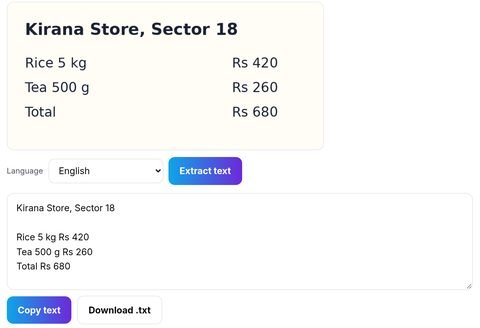
In this guide
You have a screenshot of a bill, a scanned Aadhaar, a photographed page of a contract. You need the text out of it. So you search "image to text", click the first result, and drop the file in.
Whether the file leaves your device depends on the tool. Check its processing and retention explanation before using a payslip, identity document or client file.
What actually happens to an uploaded document
OCR services have different processing and retention practices. An account requirement alone does not prove a file is retained, just as no-login access does not prove local processing.
When you upload, you are trusting an unknown third party with whatever is in that document. For a meme, fine. For these, less fine:
- Government IDs. PAN, Aadhaar, passport, driving licence. The exact set of numbers used to impersonate you.
- Payslips and bank statements. Salary, account numbers, employer, address.
- Medical reports. Health data you would not hand to a marketing company.
- Signed contracts. Client names, commercial terms, signatures.
The safest upload is the one that never happens.
There is a second way to do OCR
Some OCR tools perform recognition in the browser after loading their code and language models. Local recognition can avoid uploading the selected image, but libraries, analytics, extensions and local storage remain separate privacy considerations.
Inspecting the Network panel during a particular conversion can help identify requests. A tool may first download a recognition model or other assets. An empty panel is not a complete audit or a guarantee about future data handling.
Read the text, keep the file
Drop in a screenshot, scan or photo and pull the text straight out. It runs in your browser, so the image never travels anywhere.
Open the image to text toolFree, no sign-up, nothing uploaded.
How to get clean text out of a bad scan
OCR quality is mostly an input problem. A few things help more than any tool choice:
- Shoot flat and square. A page photographed at an angle loses accuracy fast. Get the camera parallel to the paper.
- Light it evenly. A shadow across the middle of a page reads as a smudge. Daylight near a window beats a ceiling bulb directly overhead.
- Do not shrink it first. Compress after you have the text, never before. Detail you delete is detail the reader cannot use.
- Crop to the text block. Fewer logos, stamps and borders mean fewer stray characters to clean up.
Then redact before you forward it
Pulling text out is usually step one. Step two is sending it to an accountant, a colleague, or a form. That is the moment to strip the parts nobody downstream needs, especially now that India's data protection rules put real obligations on anyone handling personal data. Our PII redactor does that in the browser too, and this piece explains what to remove and why.
The short version
Choose a tool whose processing behavior suits the document, then proofread the extracted text against the original. OCR can misread names, dates and amounts. See the privacy policy and the image-to-text tool’s notes before handling sensitive material.
Questions people actually ask
- Is online OCR safe to use?
- Review the tool’s processing, retention, permissions and storage. Local recognition can avoid a file upload but does not eliminate every privacy or accuracy risk.
- How can I check whether a tool uploads my file?
- Check the processing explanation and inspect requests during the operation. Account for model and library downloads; one observation cannot establish all behavior.
- Can browser-based OCR handle handwriting?
- Printed text is far more reliable than handwriting. Clear block capitals sometimes work, but cursive and rushed handwriting remain difficult for OCR generally, not just in the browser.
- Does OCR work offline?
- Once a client-side tool has loaded in your browser, the recognition itself needs no connection because the processing happens locally on your own processor.
- What file types can I convert to text?
- Common image formats such as JPG, PNG and WebP, plus screenshots and photographs of documents. For PDFs with selectable text, use text extraction. Scanned or image-only PDF pages need OCR; choose a workflow that supports those pages.
Written by Sourav Mahapatra, who builds BeginThings: free browser tools and BeginRooms, a 3D workspace you can walk through. Take the 30-second tour or start a free 11-day trial, no card needed.